
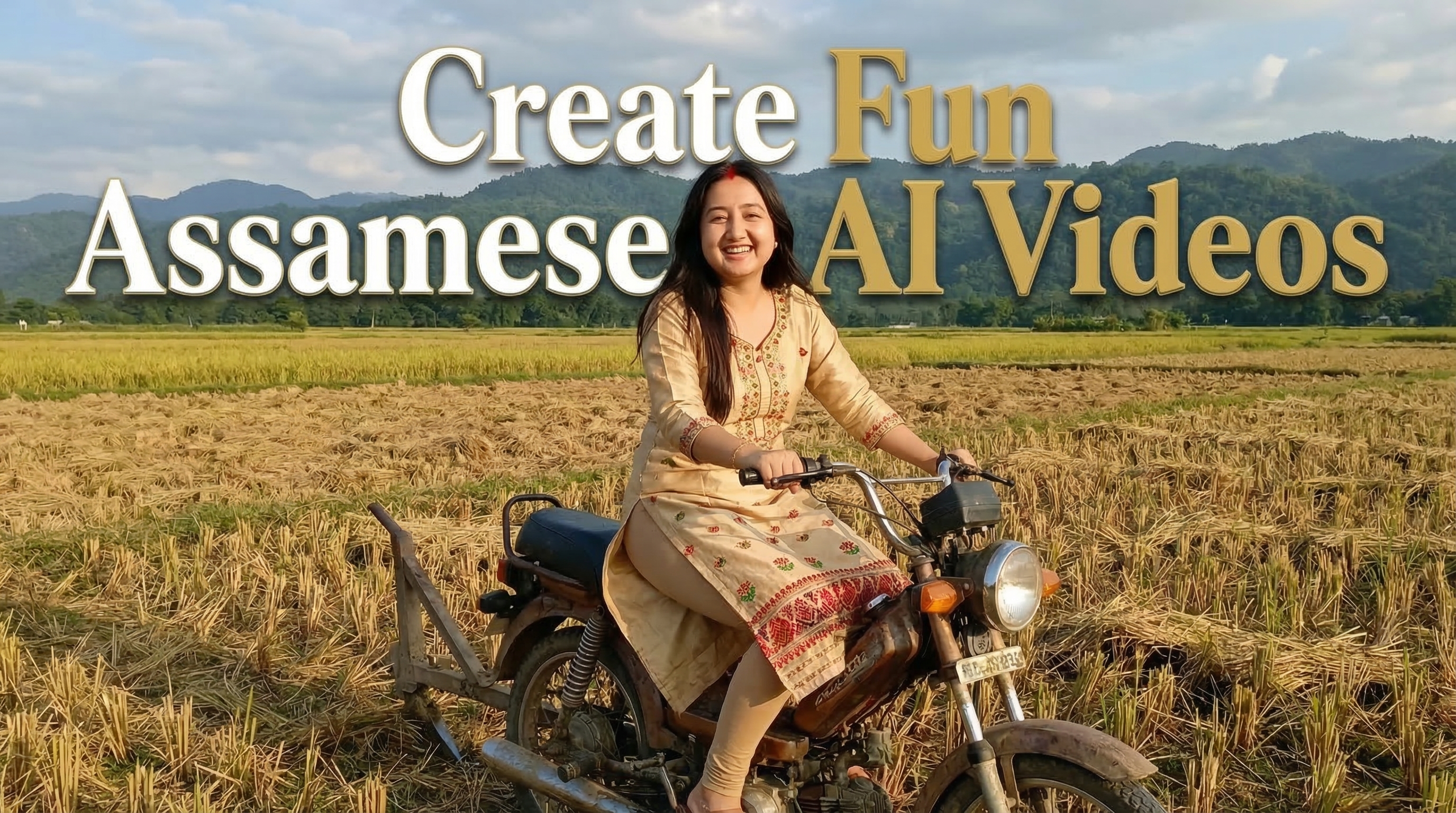
How to Generate AI Fun Assamese Video Using Scooty Ploughing Technology
(স্কুটিৰে খেতি কৰা নতুন AI টেকন’লজিৰ মজাৰ ভিডিঅ’ কেনেকৈ বনাব)
You can create funny and creative Assamese AI videos using Gemini and YouTube AI video generator. For example, you can generate a video where a woman is ploughing farmland using a scooty as a new farming technology. (আপুনি Gemini আৰু YouTube AI ভিডিঅ' জেনেৰেটৰ ব্যৱহাৰ কৰি মজাৰ আৰু সৃষ্টিশীল অসমীয়া AI ভিডিঅ' বনাব পাৰে। উদাহৰণস্বৰূপে, এগৰাকী মহিলাই স্কুটিৰে খেতি পথাৰত নতুন কৃষি পদ্ধতি হিচাপে খেতি কৰা এটা ভিডিঅ' তৈয়াৰ কৰিব পাৰে।)
Example Image (উদাহৰণ ছবি)
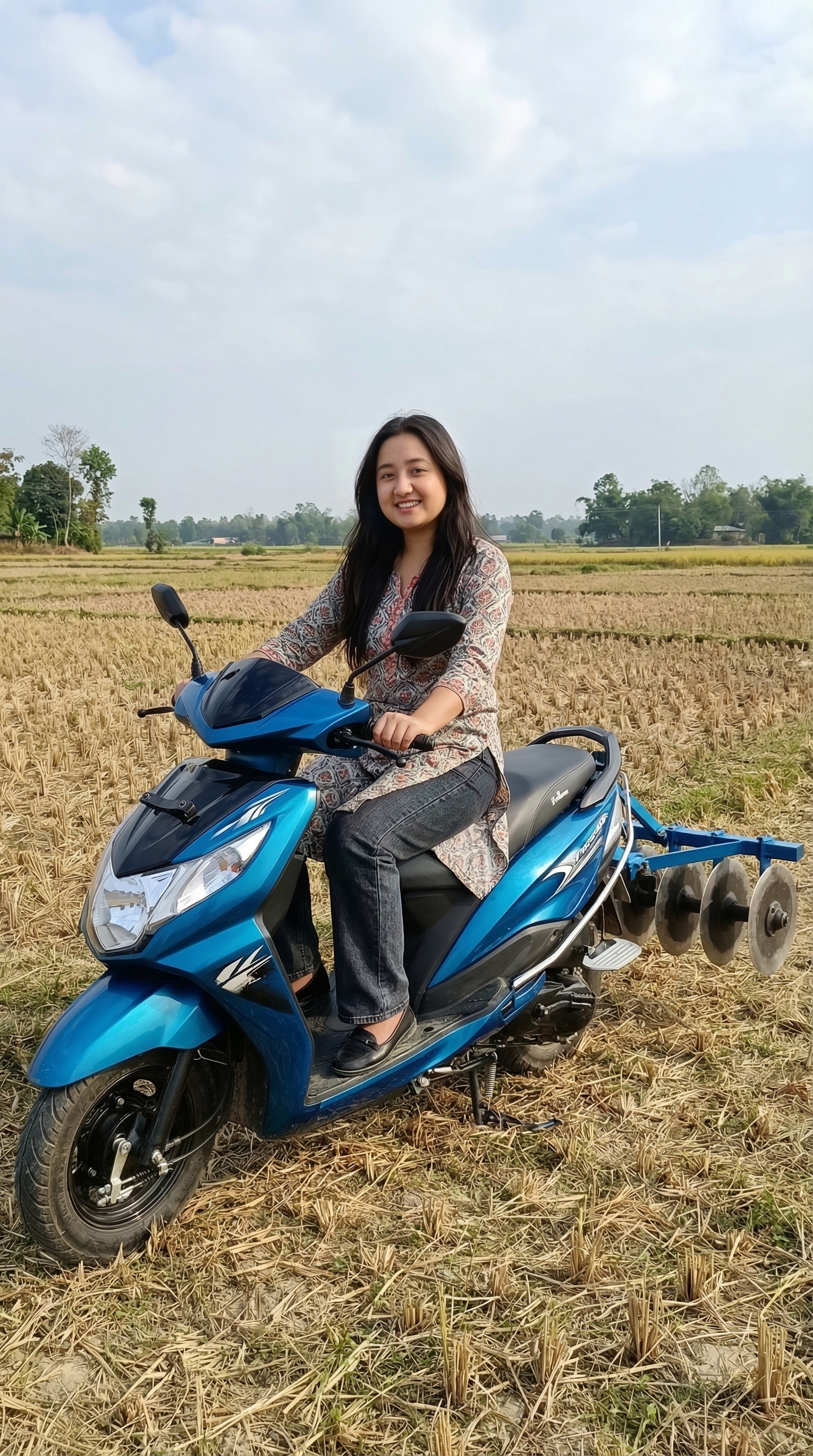
ওপৰৰ ছবিখন এনে এটা AI ভিডিঅ'ৰ বাবে ব্যৱহাৰ কৰা হৈছে য'ত স্কুটিৰে খেতি কৰা দেখা গৈছে।
Step‑by‑Step Instructions (পদক্ষেপ)
Step 1: Generate the Image First (প্ৰথমে ছবিখন তৈয়াৰ কৰক)
Open the Gemini app and generate an image similar to the example above. Describe the scene clearly, for example: a woman riding a scooty in a farmland with a ploughing machine attached behind. প্ৰথমে Gemini এপ খোলক আৰু ওপৰৰ উদাহৰণৰ দৰে এখন ছবি তৈয়াৰ কৰক। দৃশ্যখন স্পষ্টকৈ বৰ্ণনা কৰক: এগৰাকী মহিলাই খেতি পথাৰত স্কুটি চলাই আছে আৰু পিছফালে খেতিৰ যন্ত্ৰ সংযুক্ত।
Step 2: Open YouTube (ইউটিউব খোলক)
After generating the image, open the YouTube app on your Android phone. ছবিখন তৈয়াৰ কৰাৰ পিছত, আপোনাৰ এণ্ড্ৰইড ফোনত YouTube এপ খোলক।
Step 3: Tap the + (Plus) Icon (+ বুটামত টিপক)
At the bottom of the YouTube home screen, tap the plus (+) icon. ইউটিউবৰ হোম স্ক্ৰীনৰ তলত থকা + আইকনত টিপক।
Step 4: Select “Add” Option (“Add” বাচনি কৰক)
After tapping the plus icon, select the “Add” option from the menu. + আইকনত টিপাৰ পিছত মেনুৰ পৰা “Add” বাচনি কৰক।
Step 5: Click “Create Video” (“Create Video” ত ক্লিক কৰক)
Now click on the “Create Video” option to enter AI video creation mode. এতিয়া “Create Video” অপচনত ক্লিক কৰি AI ভিডিঅ' তৈয়াৰ ম'ডত প্ৰৱেশ কৰক।
Step 6: Select Your Image (আপোনাৰ ছবিখন বাছক)
Click the + icon again and choose the image you generated with Gemini. আকৌ + আইকনত ক্লিক কৰি Geminiৰ পৰা তৈয়াৰ কৰা ছবিখন বাছক।
Step 7: Write the Video Prompt (ভিডিঅ'ৰ বাবে প্ৰম্পট লিখক)
Write a detailed prompt describing the video. You can also add Assamese dialogue. ভিডিঅ'টোৰ বিষয়ে এটা বিস্তাৰিত প্ৰম্পট লিখক। অসমীয়া সংলাপো যোগ কৰিব পাৰে।
Generate cinematic stable video, camera should remain steady.
The woman rides the scooty across the farmland while the plough machine heavily ploughs the soil.
Large amounts of dry soil and dust rise into the air while the land is being ploughed.
The environment looks realistic and rural farmland.
She speaks in Assamese:
"আজিকালি খেতি কৰা বহুত সহজ হৈ গৈছে। এইটো মোৰ নতুন স্কুটি কৃষি প্ৰযুক্তি। ট্ৰেক্টৰ নালাগে, স্কুটি থাকিলেই খেতি কৰিব পাৰি।"
Step 8: Generate the Video (ভিডিঅ' তৈয়াৰ কৰক)
Click the arrow button to generate the AI video. Wait a few seconds while YouTube processes it. এৰ' বুটামত ক্লিক কৰক আৰু AI ভিডিঅ' তৈয়াৰ হ'বলৈ অপেক্ষা কৰক।
After generation, you can download the video or upload it directly to YouTube Shorts. ভিডিঅ' তৈয়াৰ হোৱাৰ পিছত, আপুনি সেইটো ডাউনলোড কৰিব পাৰে বা পোনে পোনে YouTube Shorts ত আপলোড কৰিব পাৰে।
Watch the tutorial video above for a complete walkthrough. সম্পূৰ্ণ প্ৰক্ৰিয়াটো বুজিবলৈ ওপৰৰ টিউটৰিয়েল ভিডিঅ' চাওক।
How Many Videos Can You Generate? (কিমানটা ভিডিঅ' বনাব পাৰি?)
With the free version of YouTube's AI video tool, you can create up to 4 videos per day. The credits refresh daily. ইউটিউবৰ AI ভিডিঅ' টুলৰ ফ্ৰী সংস্কৰণত আপুনি দৈনিক 4 টালৈকে ভিডিঅ' বনাব পাৰে। ক্ৰেডিট দৈনিক ৰিফ্ৰেশ্ব হয়।
Why Use Gemini AI for Assamese Videos? (অসমীয়া ভিডিঅ'ৰ বাবে Gemini AI কিয় ব্যৱহাৰ কৰিব?)
- Language Support: Gemini understands English prompts and can generate Assamese speech if you include Assamese text. Gemini-য়ে ইংৰাজী প্ৰম্পট বুজি পায় আৰু অসমীয়া টেক্সট যোগ কৰিলে অসমীয়া ভাষাত কথা ক'ব পৰা ভিডিঅ' বনাব পাৰে।
- Photo Integration: Use your own photos and let AI create a video around them. নিজৰ ফটো ব্যৱহাৰ কৰক আৰু AI-ক তাৰ চাৰিওফালে ভিডিঅ' সাজিবলৈ দিয়ক।
- Free & Accessible: No subscription needed – just the YouTube app and your creativity. কোনো ছাবস্ক্ৰিপশ্যনৰ প্ৰয়োজন নাই – মাত্ৰ YouTube এপ আৰু আপোনাৰ সৃষ্টিশীলতা।
Ready to start? Open the YouTube app now and follow the steps. For more detailed guides, visit devdid.com. আৰম্ভ কৰিবলৈ সাজু? এতিয়াই YouTube এপ খোলক আৰু পদক্ষেপবোৰ অনুসৰণ কৰক। অধিক নিৰ্দেশনাৰ বাবে devdid.com চাওক।